24 Feb 2020 | Accessibility | Tech Update



This week, Support Lead, Helen Grimbly will be outlining why sometimes an issue is not highlighted in the page view of a SMARTVIEW.
A SMARTVIEW shows what a page looked like as the time of the assessment, whether the assessment is from an on-demand test or from a scheduled assessment.
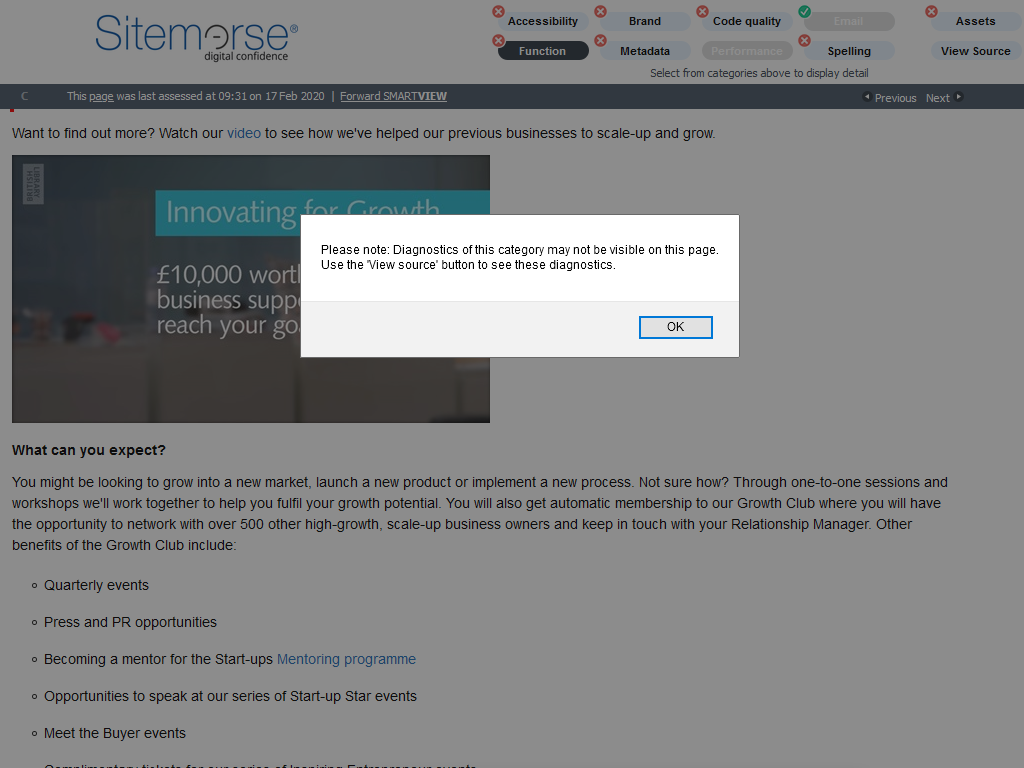
On the above SMARTVIEW page view, an alert box is shown that says "Please note: Diagnostics of this category may not be visible on this page. Use the 'View source' button to see these diagnostics."
To access the SMARTVIEW source view, the user can click OK to close the alert box, then click 'View Source' button in the top banner, and then click the 'next' button to step through the issues to locate the appropriate source line.
An example might be something like:
<iframe src="https://www.googletagmanager.com/ns.html?id=ABC-12345678" height="0" width="0" style="display:none;visibility:hidden"></iframe>
Although this code is potentially an important part of the page, it is not in itself a visible element on the page and hence there is nothing that can be highlighted in the SMARTVIEW page view. This is why the user is then advised to view the issue in the SMARTVIEW source view.